
Use the getting started checklist
Work through the checklist on the right of the screen to finish setting up your account.
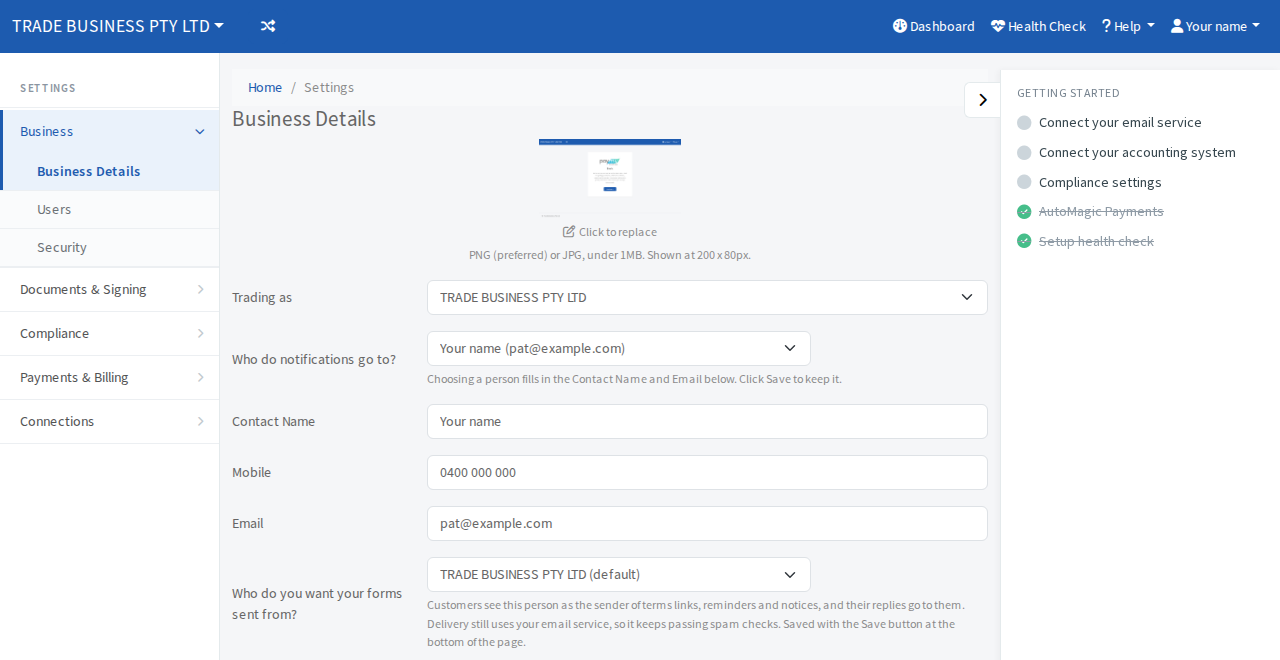
New accounts get a checklist headed Getting started on the right of the screen. Each line is a link to the place where you do that step.
Steps
- Look at the Getting started panel on the right of the dashboard.
- Select a line to go straight to that step.
- Finish the step. Its circle becomes a green tick and the text is crossed out.
What is on the list
The list depends on your plan and your answers, so yours may differ. Typical lines are:
- Confirm your business details. See Update your business details.
- Confirm your customer type. See Choose who your customers are.
- Payment terms. See Set your default payment terms.
- Connect your email service. See Connect your email account.
- Connect your accounting system. See what you can connect.
- Add your first commercial customer and Add your first consumer customer. These walk you through your own terms link as a customer would see it, so nothing real is created.
- Compliance settings, for registered tax and BAS agents. See Verify your tax or BAS agent registration.
- AutoMagic Payments. See AutoMagic Payments.
- Setup health check. See Run the health check.
Some steps tick when you open the page and leave it, not when you save, so a tick means you have looked at the step.
Hide or show the panel
Select the small arrow on the panel's edge to collapse it, and select it again to open it. On a phone it stays out of the way until you open it.