
Update your business details
Check and change your business name, contact details, address and terms link in one place.
Your business details appear on the terms you send and in the emails customers receive. Check them when you first set up and whenever something changes.
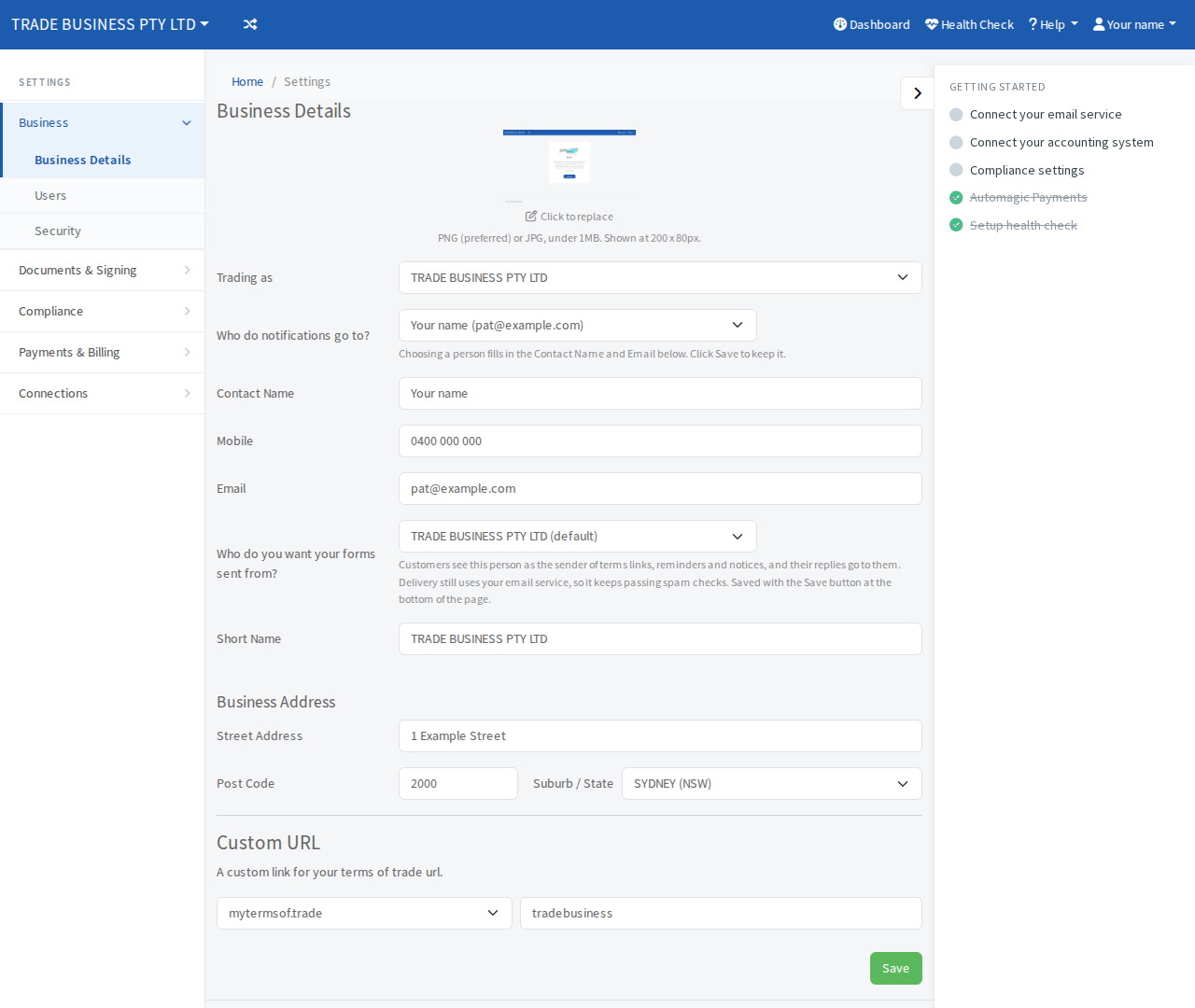
Steps
- Open Settings, then Business, then Business Details.
- Change what you need:
- Trading as: the business name customers see.
- Who do notifications go to?: pick a person on your team to fill in the contact name and email below, or choose Someone else and type them. Notifications go to this contact.
- Contact Name, Mobile and Email.
- Who do you want your forms sent from?: the business or one of your staff. Customers see this person as the sender of terms links, reminders and notices, and their replies go to them.
- Short Name: a short form of your business name that appears inside your Terms of Trade, for example "Acme" for "Acme Plumbing Pty Ltd".
- Business Address: street address, postcode and suburb.
- Custom URL: the last part of your terms link.
- Select Save at the bottom of the page. One Save keeps everything on the page.
When it works, your changes are still there if you reload the page. If you changed the custom URL, the Your Terms Link on the dashboard shows the new address.
Notes on the address
Use a physical address. Post office boxes are not accepted. The address is shown on the terms you send to customers.
Notes on the custom URL
This is the ending of your terms link, for example your business name in lower case. Pick a short name that customers will recognise.