
Connect your email account
Connect your Google or Microsoft account so the emails Pay My Business sends for you go out through it.
Pay My Business sends emails for you: Terms of Trade links, reminders and notices. Connect your own Google or Microsoft account and they are sent through it, so they come from your own mailbox and keep passing spam checks.
Before you start
You need to sign in to the Google or Microsoft account you want to use, and be allowed by that account to give an app access to send email.
Steps
- Open Settings, then Connections, then Email.
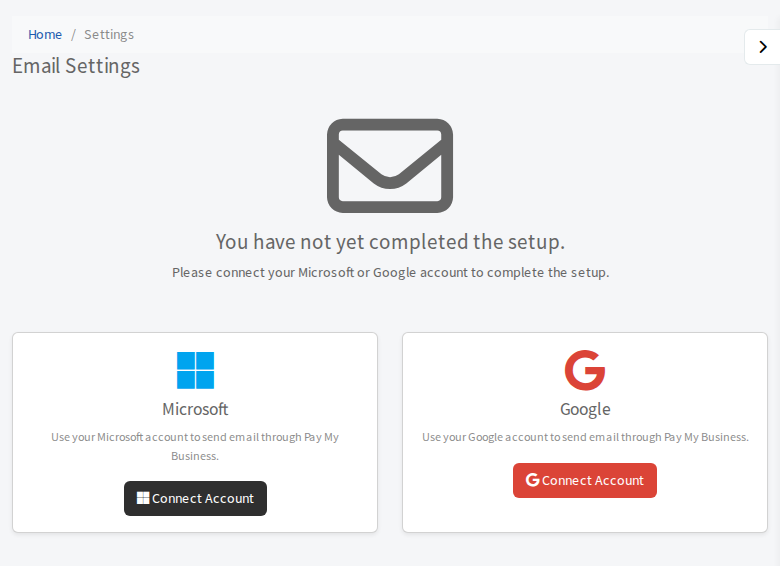
- Pick the card for your provider, Microsoft or Google, and select Connect Account.
- Sign in on the Google or Microsoft screen and approve the access it asks for.
- You return to Pay My Business. The card now shows Connected and the page says your email setup is complete and ready to send email.
Choose who the emails appear to come from
Open Settings, then Business Details and find Who do you want your forms sent from? You can choose your business (the default) or one of your staff. Customers see that person as the sender of terms links, reminders and notices, and their replies go to them. Delivery still uses the account you connected here.
Change or disconnect the account
On the connected card the button now says Disconnect Account. Press it to remove the connection. Pay My Business cannot send email on your behalf without a connected account, so connect another one straight away.