
Finish setting up your account
Know what the first setup screens ask for after you sign in for the first time, and what comes next.
The first time you sign in, Pay My Business walks you through a few screens before you reach the dashboard. Each one is short.
The setup screens
- A welcome screen tells you which plan your account is on. Select Continue.
- Upload your logo. Choose a file or select Skip for now. See Add your logo.
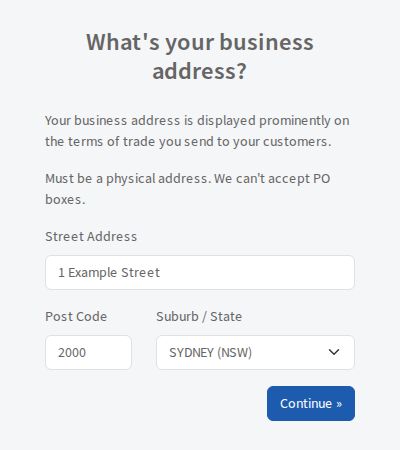
- What's your business address? Enter a physical street address, postcode and suburb, then select Continue. Post office boxes are not accepted. The address is shown on the terms you send.
- Update your billing details, if it appears. Choose Card or AU Direct Debit, enter the details and select Update. These are the details Pay My Business uses to bill your firm, not your customers' details.
Which screens you see depends on your plan and what you have already done.
When you are through
You land on the dashboard. The Getting started panel on the right unlocks and lists what to do next. Work down it. See Use the getting started checklist.
If you leave part way
Close the window and sign in again later. You come back to the screen you were on. The address is required before the dashboard opens, and so are billing details if that screen appears. The logo is optional, but you are asked again in a later session until one is added.