
Find your way around
Learn what is on the dashboard, in the settings menu and in the checklist so you can find things quickly.
Everything you do day to day starts from the dashboard. Settings sit in their own area.
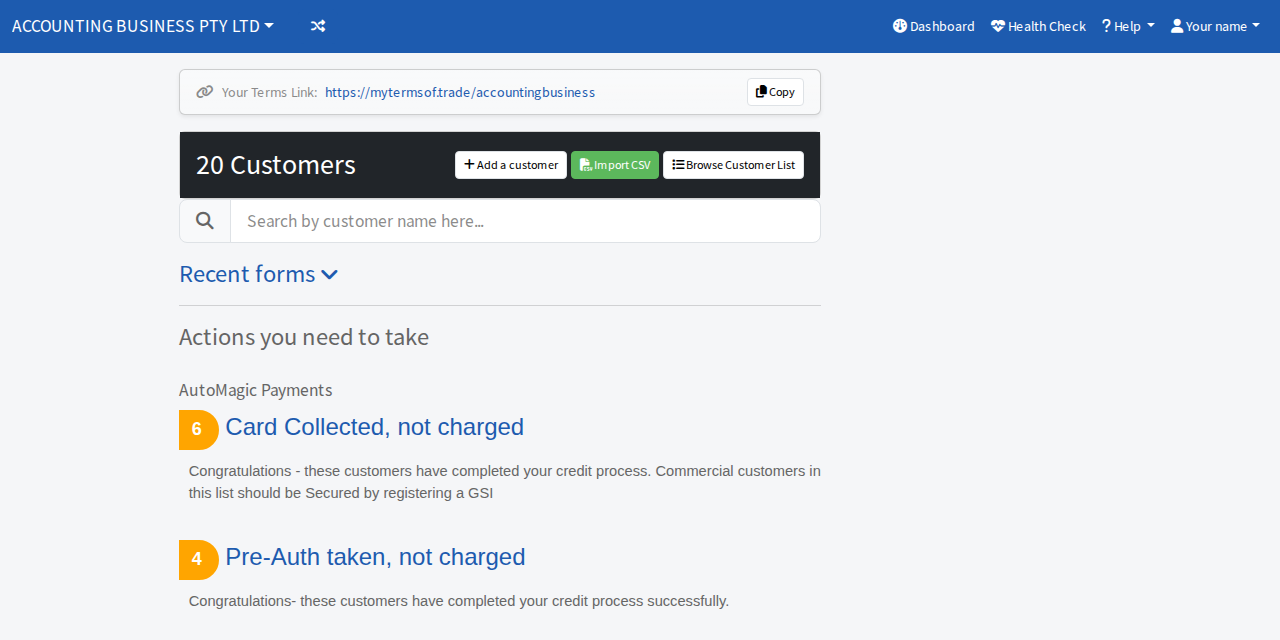
The dashboard
- Your Terms Link is the web address you send to customers. Select Copy to copy it.
- The black bar shows how many customers you have. Add a customer starts a new Terms of Trade request, Import CSV brings in a list of customers and Browse Customer List shows everyone. The search box finds a customer by name.
- Actions you need to take lists what is waiting for you, such as customers to approve, payment terms to set or cards that failed. Each line has a count. A grey zero means nothing is waiting there. Select a heading to see the customers in it.
- Customer Summary shows how many customers are completed, secured or declined.
The top bar
- Your organisation's name is at the left. If you belong to more than one organisation, a small switch button sits beside it. See Switch between organisations.
- Health Check gives you short recommendations. See Run the health check.
- Settings opens every setting. See Find a setting.
- Help opens this documentation and Support. Force Reload loads the newest version of the page if something looks out of date.
The getting started checklist
A panel on the right lists the next steps for your account. See Use the getting started checklist.
Ask for help
The round Ask for help button stays in the bottom corner of every screen.