
Send a quote with a deposit and payment stages
Send a customer a quote with your terms, split into a deposit and stages, so they accept and agree how they will pay in one go.
A quote sent through Pay My Business is accepted with your Terms of Trade in the same visit. You choose the total, a deposit and the stages the rest is paid in. Once the customer accepts, you can record any later change as a variation.
Before you start
A quote needs a payment method, so AutoMagic Payments must be set up. See Apply for AutoMagic Payments. Have your quote ready as a document to upload.
Steps
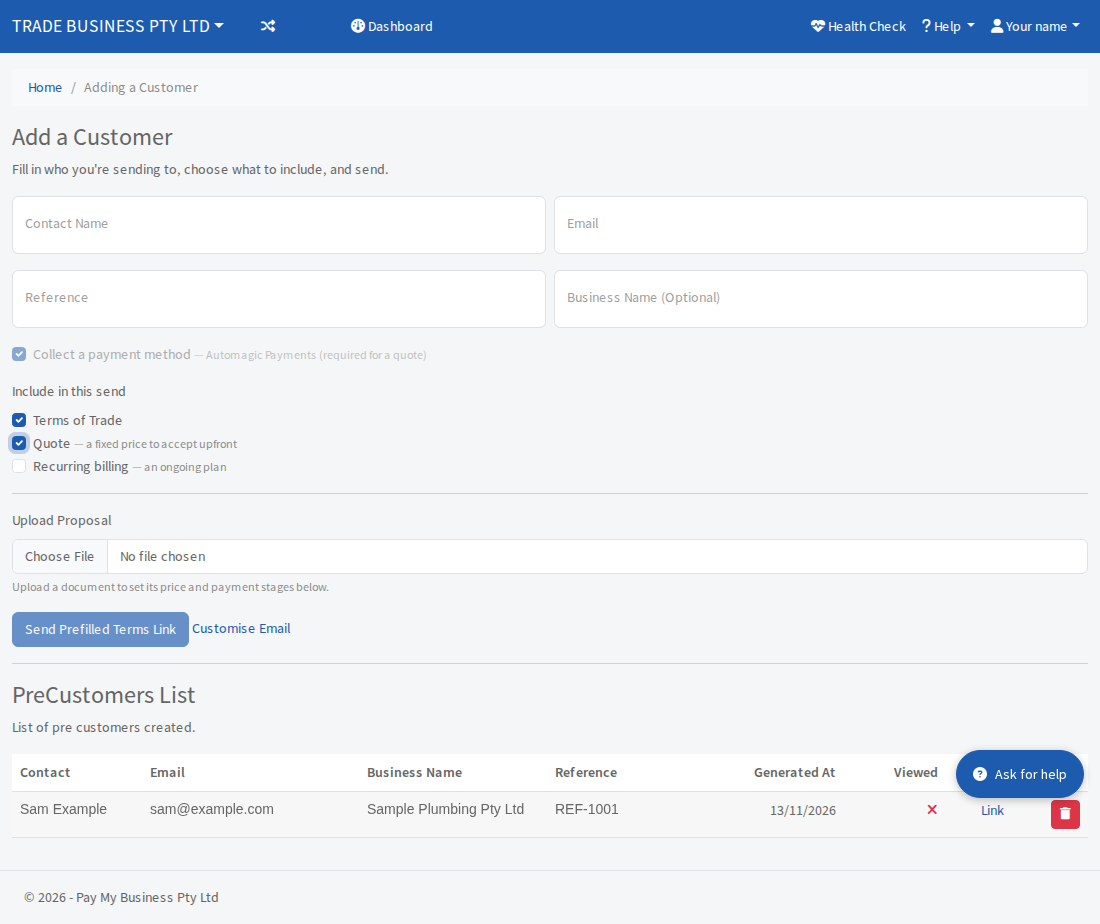
- Open the Dashboard, then select Add a customer.
- Fill in the customer's Contact Name and Email.
- Under Include in this send, tick Quote. Collect a payment method is ticked for you and cannot be switched off while the quote is ticked.
- Under Upload Proposal (the box is labelled that way even though you are sending a quote), choose your quote document. The price and payment stage boxes appear.
- Enter the Quote Amount.
- Set the Quote Deposit with the slider or by typing a dollar amount.
- Add each remaining payment with Stage. Give each a Name, for example
Stage 1, and an amount. Each stage can be set as a dollar amount or a percentage of the quote. The deposit and the stages together must add up to the quote total or you cannot send it. - Type a Quote Acceptance Message if you want the customer to see a particular sentence when they accept.
- Select Send Quote, then Send in the email window.
What the customer does
They open the link, accept the quote and sign your terms, and give a payment method. See What your customer sees when they sign.