
Add a customer
Send a new customer an email with a link to your Terms of Trade, with their details already filled in.
A customer is added to Pay My Business when they sign your Terms of Trade. You start that by sending them a link. This page sends the link by email with their name, email and business name already filled in, so they have less to type.
Before you start
You need the customer's name and email address. A business name and your own reference are optional.
Steps
- Open the Dashboard, then select Add a customer.
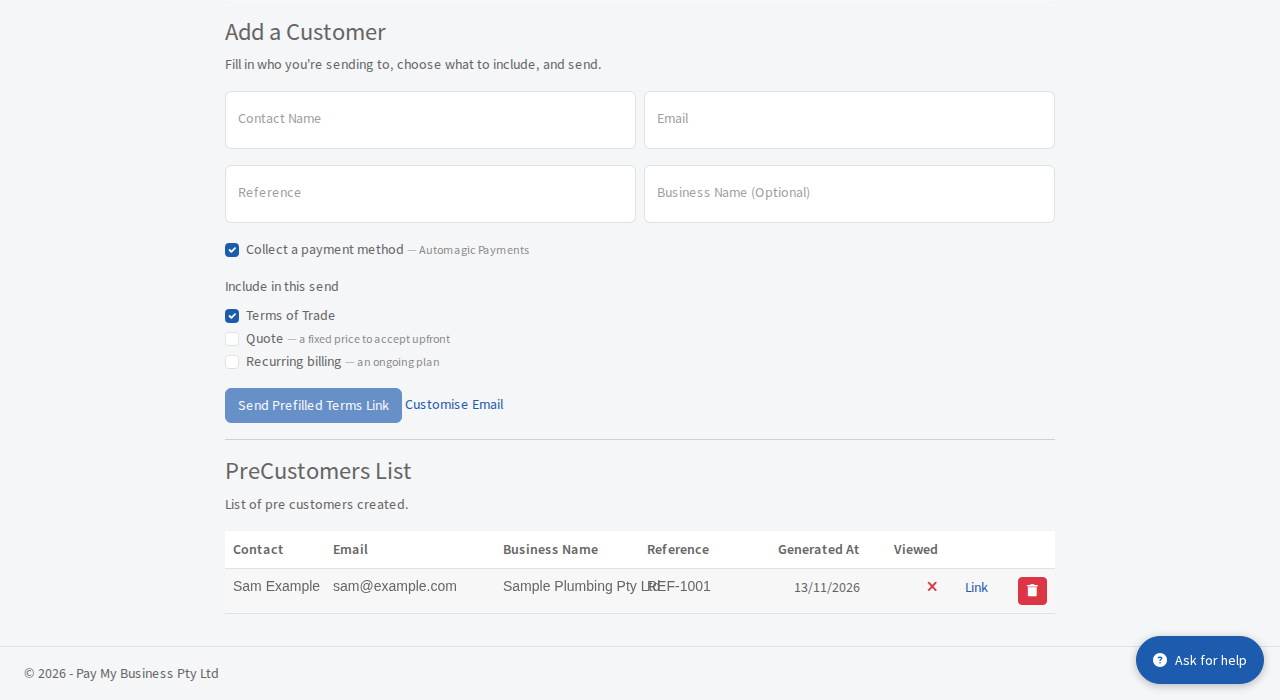
- Fill in Contact Name and Email. Add a Reference (your own job or account number) and the Business Name if you know them.
- Under Include in this send, leave Terms of Trade ticked. Tick Quote to send a fixed price for them to accept, or Recurring billing to offer an ongoing plan. Both of those need a payment method, so Collect a payment method is ticked for you. If you have more than one form, each one appears in this list.
- Select Send Prefilled Terms Link. If you ticked Quote the button reads Send Quote.
- A window shows the email. Change the wording if you like, then select Send.
You will see a message that the terms link has been sent to the customer's email address.
Check who has opened their link
The PreCustomers List under the form shows everyone you have sent a link to:
- Viewed shows a tick once they have opened the link and a cross until then.
- Link copies their personal link, in case you want to send it by text message instead.
- The red bin removes the invitation. The link stops working.
The Dashboard also counts these on Prefilled terms pending (sent) until the customer signs. See What each list on your Dashboard means.
What happens next
When your customer signs, they appear in your customer list (select Browse Customer List on the Dashboard) and the next step is to set their payment terms. To send the same link to many customers at once, import them from a CSV file.