
Import your customers from a CSV file
Upload a customer list from a spreadsheet or your accounting software and send each customer your terms in one go.
If you already have a list of customers in a spreadsheet, or in an export from Xero, MYOB or QuickBooks, you can invite them all at once. Each person gets your Terms of Trade email. Anyone already invited or already a customer is skipped, so it is safe to run the same file twice.
Before you start
Save your list as a CSV file with a heading row. Each row needs at least a contact name and an email address. A business name, your own reference and an ABN are optional.
Steps
- Open the Dashboard, then select Import CSV.
- Select Choose File, pick your file, then select Upload & continue.
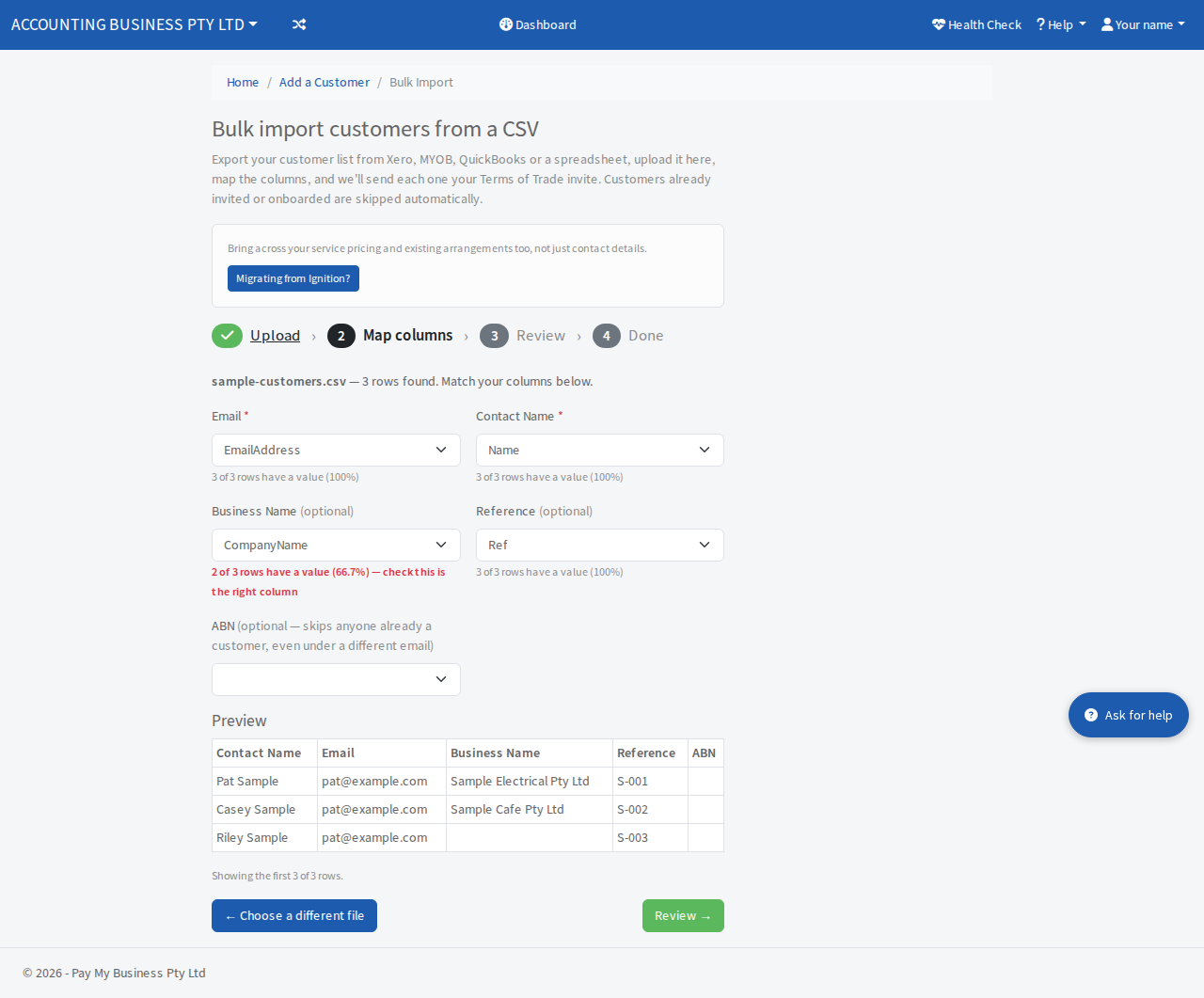
- Look over the four boxes on the Map columns step. Pay My Business suggests a column for Email, Contact Name, Business Name and Reference. Change any that are wrong. If you map an ABN column, anyone who is already a customer is skipped even when their email is different.
- Look at the preview. Under each box a line tells you how many rows have a value. It turns red when fewer than 90% do, which usually means you picked the wrong column.
- Select Review.
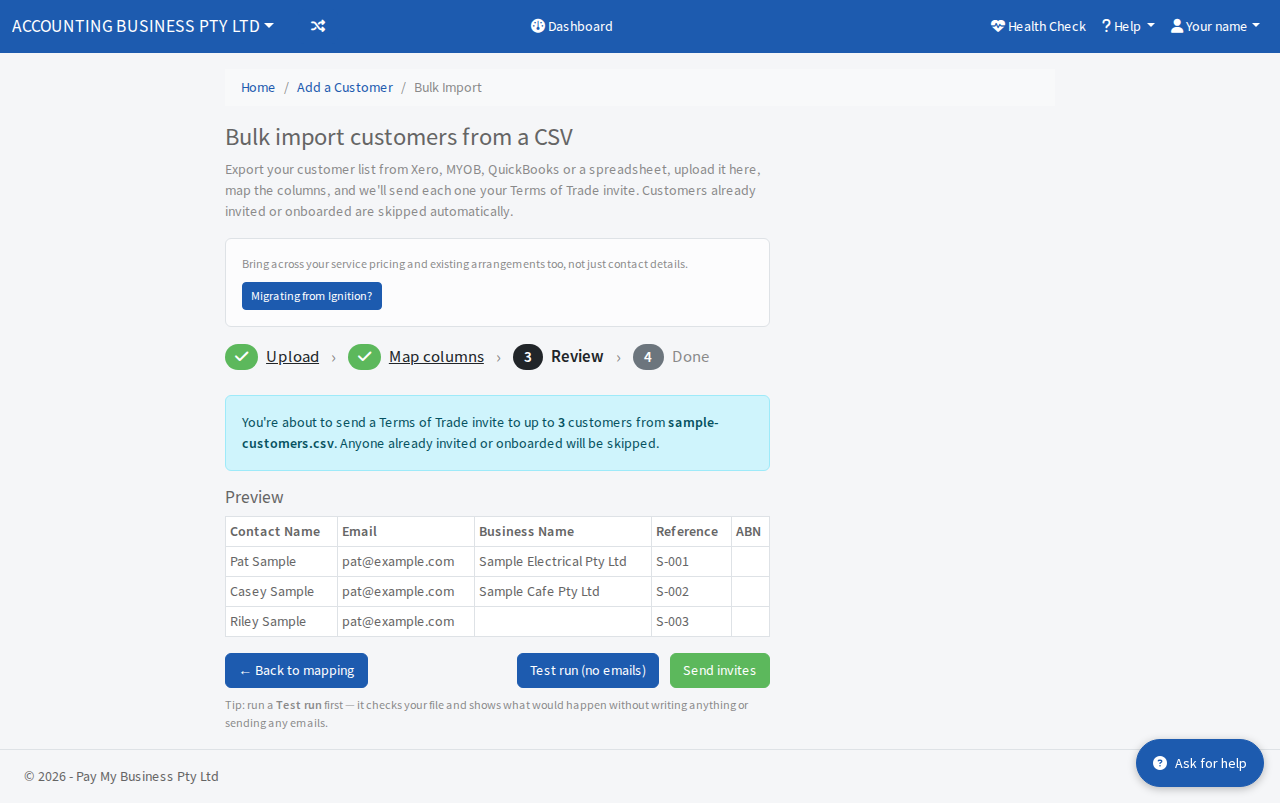
- On the Review step, select Test run (no emails). This checks your file and shows what would happen without saving anything or sending anything.
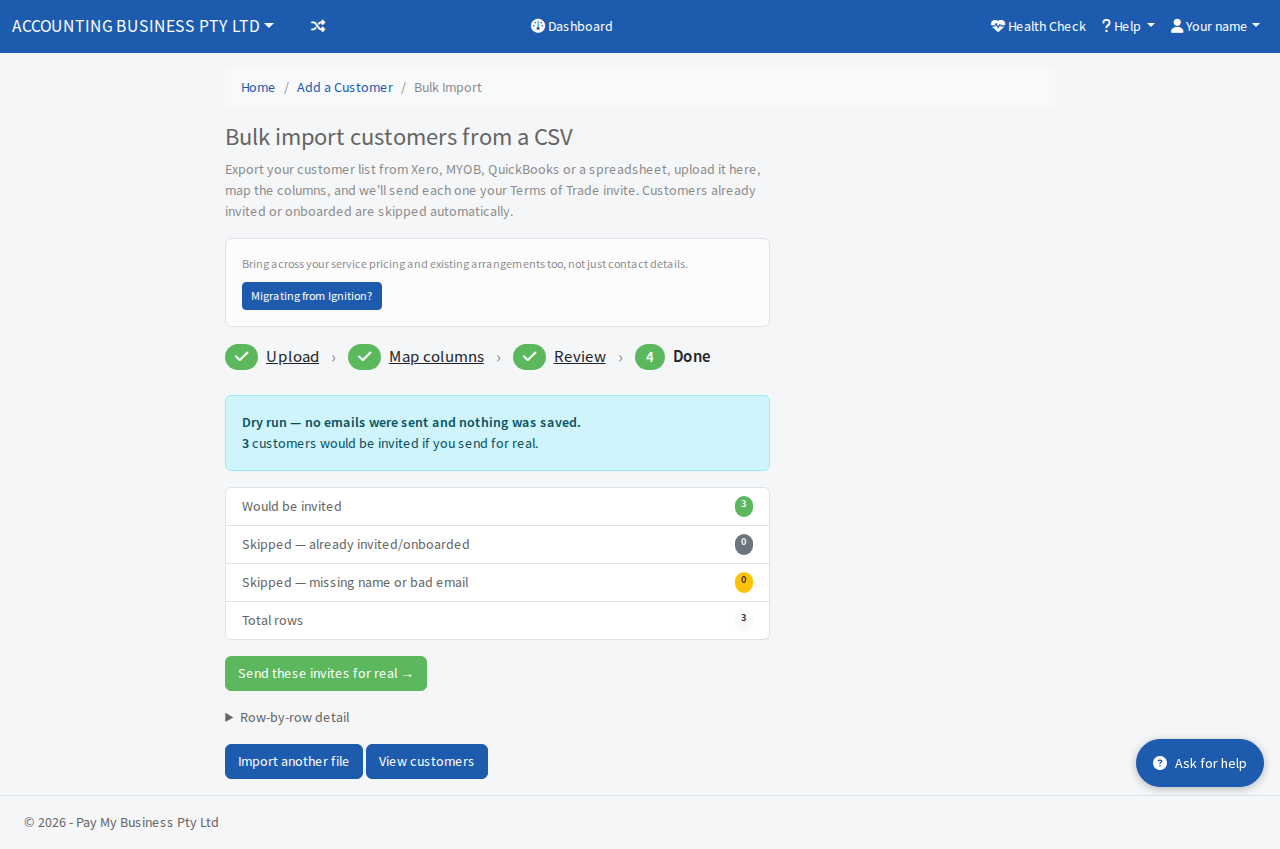
- Check the counts, then select Send these invites for real. If you skip the test run, select Send invites on the review step instead.
After the import
The result page counts who was invited, who was skipped because they were already invited or already a customer, and who was skipped for a missing name or bad email. Open Row-by-row detail to see each row. Select Download skipped rows (CSV) to get a file of the skipped rows, fix them and upload it again.
The Upload step also lists your Previous imports, so you can check an earlier import went through.