
Set a customer's payment terms
Approve a customer who has signed by choosing how long they have to pay you.
Once a business customer signs your terms, you decide how long they have to pay you. Consumers do not have this step. Until you do, they sit in Set Payment Terms on your Dashboard.
Steps
- Open the customer from Set Payment Terms on the Dashboard, or by searching for them on the Dashboard.
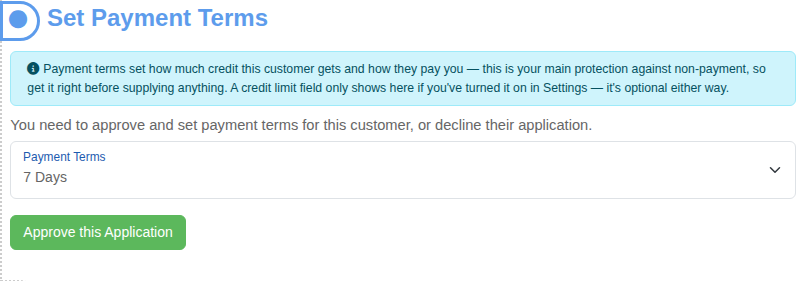
- In the Set Payment Terms step, open the Payment Terms list and choose a term, for example 7 Days.
- If a Credit Limit box is showing, enter a limit. It only appears if you have turned it on in your payment settings, and it is optional.
- Select Approve this Application.
The customer is emailed your decision. The step changes to Application Approved, showing the terms, and the next step opens.

What the terms in the list are
The list shows the terms you have chosen to offer in your settings, for example Prepaid, COD, 7 Days and 30 Days. See Set your default payment terms. It also has Recurring and AutoMagic Payments (the list's name for AutoMagic Payments), which need the customer's card. When you pick one of those, the button changes to Request payment method, which sends the customer a link to give you their card.
Change your mind later
Select Review Payment Terms on the approved step to choose different terms. You are not locked in.