
Send a form to a customer
Choose which form a customer gets, add their details so it is filled in for them and email them their personal link.
You can send a customer a link to your Terms of Trade or to any other form you have made. The link opens with their name and email already filled in.
Steps
- On the Dashboard, select Add a customer. The page is titled Add a Customer. The full steps are in Add a customer.
- Fill in Contact Name and Email. Reference and Business Name (Optional) help you recognise them later.
- Under Include in this send, choose the form or forms to send. Terms of Trade is ticked to start with.
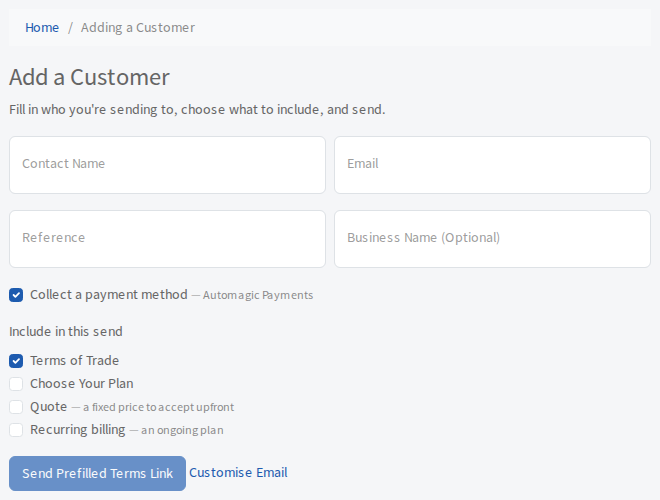
- Select Send Prefilled Terms Link. A window shows the email. Select Send to email the customer their personal link.
Change the email
The Customise Email link beside the send button opens your email templates in a new tab, where you can edit the wording for later sends. See Change the wording of your emails.
What the other options do
- Collect a payment method appears when AutoMagic Payments is set up. It asks the customer for a card or bank account as part of the form.
- Quote lets you attach a fixed price for the customer to accept up front.
- Recurring billing adds an ongoing plan. It is not available when the form you chose already carries a plan to choose from.