
Change the wording of your emails
Edit the subject and message of the emails Pay My Business sends your customers for you, or reset them to the standard text.
Pay My Business sends some emails to your customers in your name. You can rewrite each one.
Steps
- Open Settings, then Documents & Signing, then Email Templates.
- Select the email you want to change:
- Payment Terms Approved, Payment Terms Declined and Payment Terms Payment Method Request
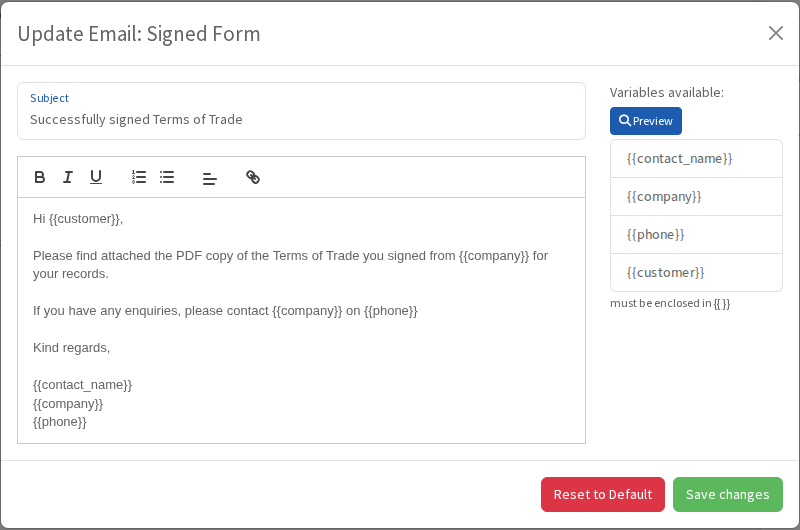
- Signed Form: sent after the customer signs
- Terms Link: sent with your Terms of Trade link
- Proposal: sent with a proposal link
- Ethical Clearance Request
- Payment Confirmation
- Identity Verfication Failed
- Edit the Subject and the message. The toolbar gives you bold, italic, underline, lists, alignment and links.
- Select Preview to see how it will read.
- Select Save changes.
Variables
The panel on the right lists the details you can drop in, such as {{company}}, {{contact_name}}, {{phone}} and {{customer}}. Type them with the double curly brackets. Some emails add their own, such as {{link}} in the Terms Link email. Each email shows exactly which ones it supports.
Go back to the standard wording
Select Reset to Default in the email's window. Your wording is replaced.
You can also edit the Terms Link or Proposal email while sending: select Customise Email on the send page.