
Add a team member
Give a colleague their own sign-in to your firm's Pay My Business account.
Everyone who uses your account should have their own sign-in, so you can see who did what and take access away from one person without affecting the rest.
Steps
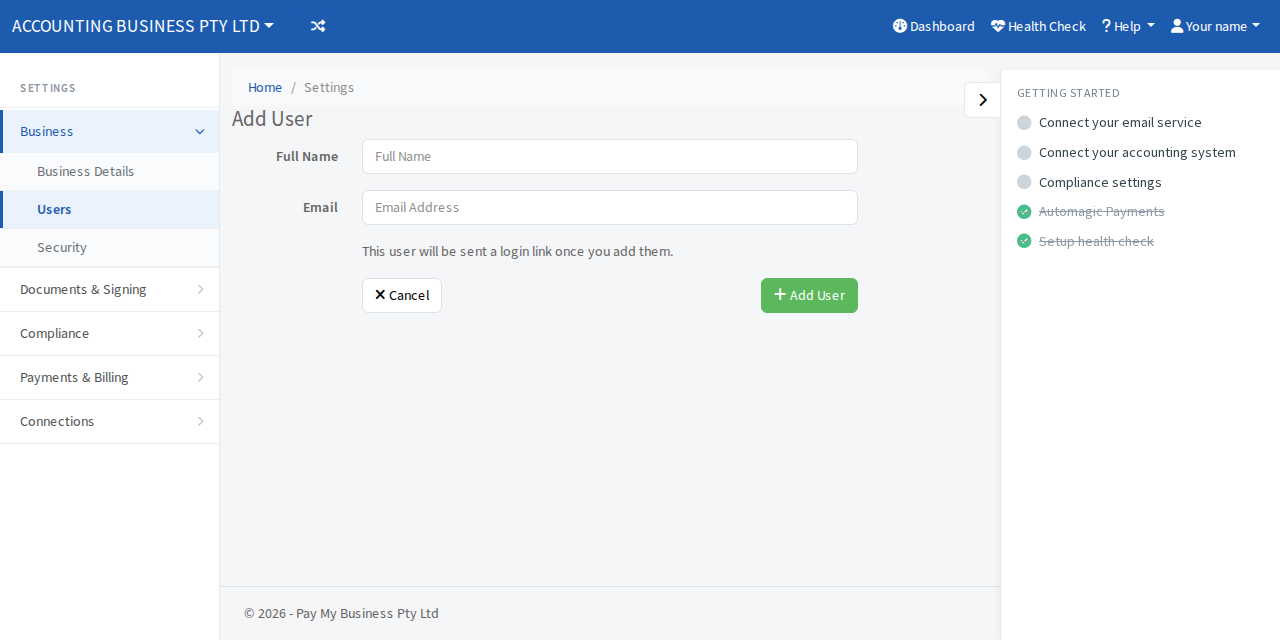
- Open Settings, then Business, then Users.
- Select Add User.
- Enter their Full Name and Email.
- Select Add User.
When it works, the person appears in the Users list.
The person signs in with their own email address. Tell them to open the Pay My Business sign-in page, enter this email address and select Next. They are sent their own sign-in link. See Sign in with an emailed link.
What they can do
A new person starts with every permission switched on. Turn off anything they should not do straight away. See Choose what a team member can do.
If they already use Pay My Business
If that email address already belongs to someone with an account at another firm, they are added to yours with the same sign-in. They can switch between the two. See Switch between organisations.
If the person is already on your team, Pay My Business says so and changes nothing.