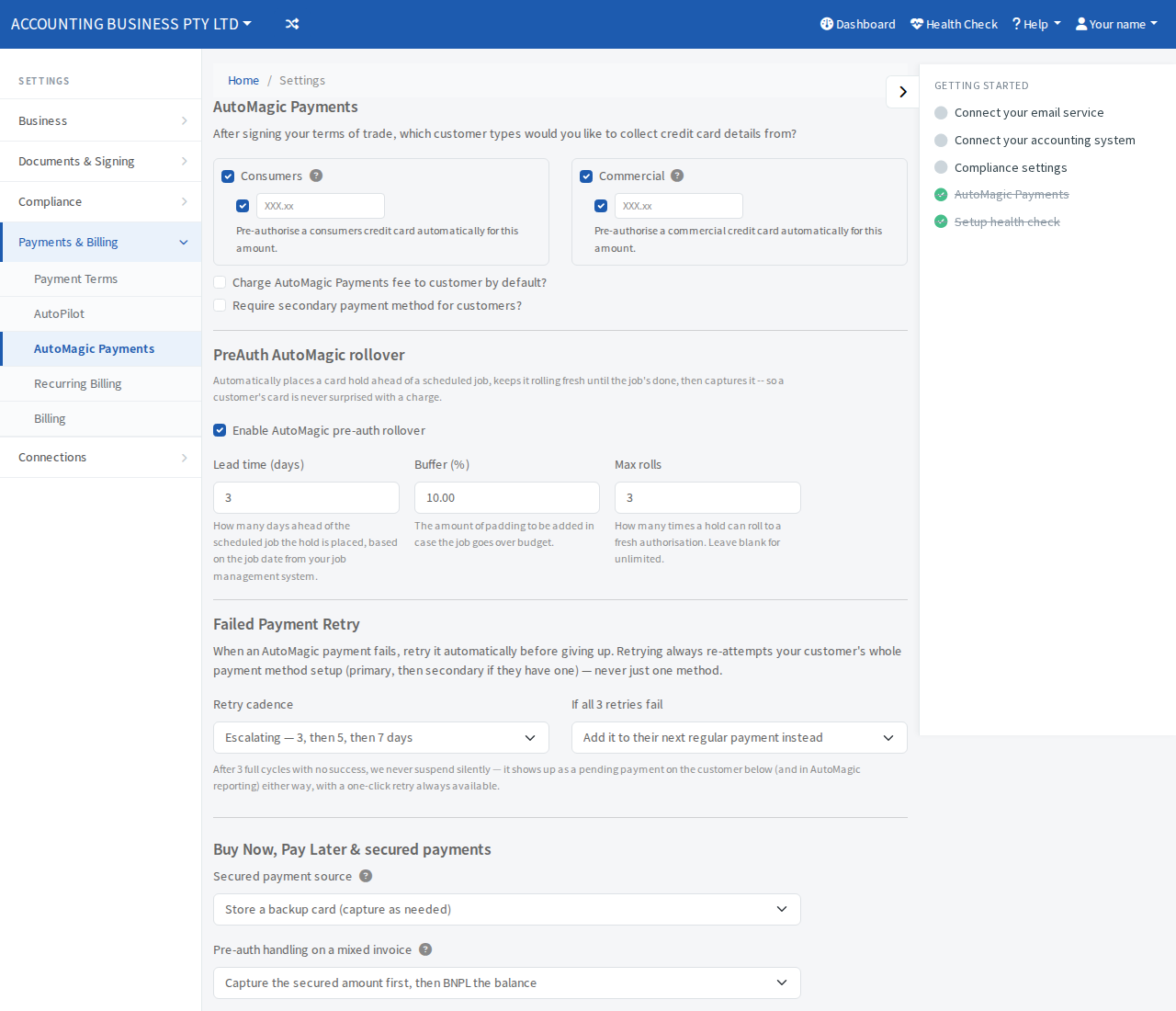
Choose how AutoMagic Payments collects from your customers
Decide which customers are asked for a card, whether a hold is placed, and who pays the fee.
These settings control what your customers are asked for when they sign your Terms of Trade. They are on one page with one Save button at the bottom.
Steps
- Open Settings, then Payments & Billing, then AutoMagic Payments.
- Under "After signing your terms of trade, which customer types would you like to collect credit card details from?", tick Consumers, Commercial or both. Select the question mark beside each for a short explanation.
- To place a hold on the card, tick the box under the customer type and enter an amount. The amount must be at least $20. See Pre-authorise a customer's card.
- Tick Charge AutoMagic Payments fee to customer by default? if you want the fee added to what the customer pays. You can still change this on each charge.
- Tick Require secondary payment method for customers? if you want customers to give a second payment method as a backup.
- Set the PreAuth AutoMagic rollover and Failed Payment Retry sections if you want them. See Hold a card automatically before a job and Choose how failed payments are retried.
- Select Save. A message says "AutoMagic Payments settings saved".