
Add signed customers to your contacts
Have every customer who signs your Terms of Trade added to your Google or Microsoft contacts automatically.
When a customer signs your Terms of Trade, Pay My Business can add them to the contacts of the Google or Microsoft account you use for email. It adds their name and email only.
Before you start
Connect your email account first. Contacts sync rides on that same connection.
Steps
- Open Settings, then Connections, then Contacts.
- Tick Add new customers to Google contacts (or Microsoft contacts, whichever you connected).

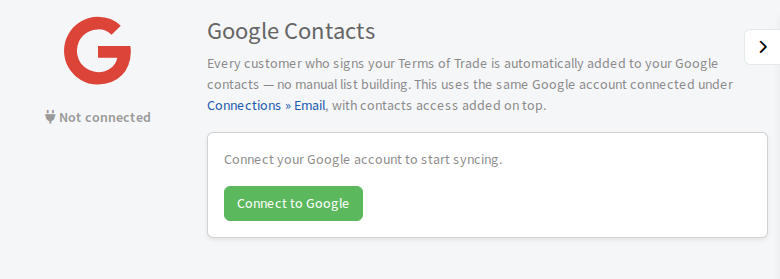
You can also reach the same choices from Settings, then Connections, then Integrations, then the Contacts tab. Select Go on Google Contacts or Microsoft Contacts.
If it asks you to reconnect
If you connected your email before contacts sync existed, the account was never asked for contacts access. The page says so. Select Reconnect to Google (or Microsoft) and approve the extra access. Nothing else about your email setup changes.