
Add signed customers to Mailchimp
Add every customer who signs your Terms of Trade to a Mailchimp audience, with separate audiences for businesses and individuals.
Each customer who signs your Terms of Trade is added to a Mailchimp audience for you. Business customers and individual customers can go to the same audience or two different ones, and either kind can be switched off.
Steps
- In Mailchimp go to Profile, then Extras, then API keys, create a key and copy it.
- In Pay My Business open Settings, then Connections, then Integrations, then the Marketing tab, and select Go on Mailchimp.
- Paste the key into API key and select Connect to Mailchimp. The page shows Connected.
- Under Commercial customers tick Add commercial (business) customers on sign and choose the Audience.
- Under Consumer customers tick Add consumer (personal) customers on sign and choose the Audience.
- Select Save settings.
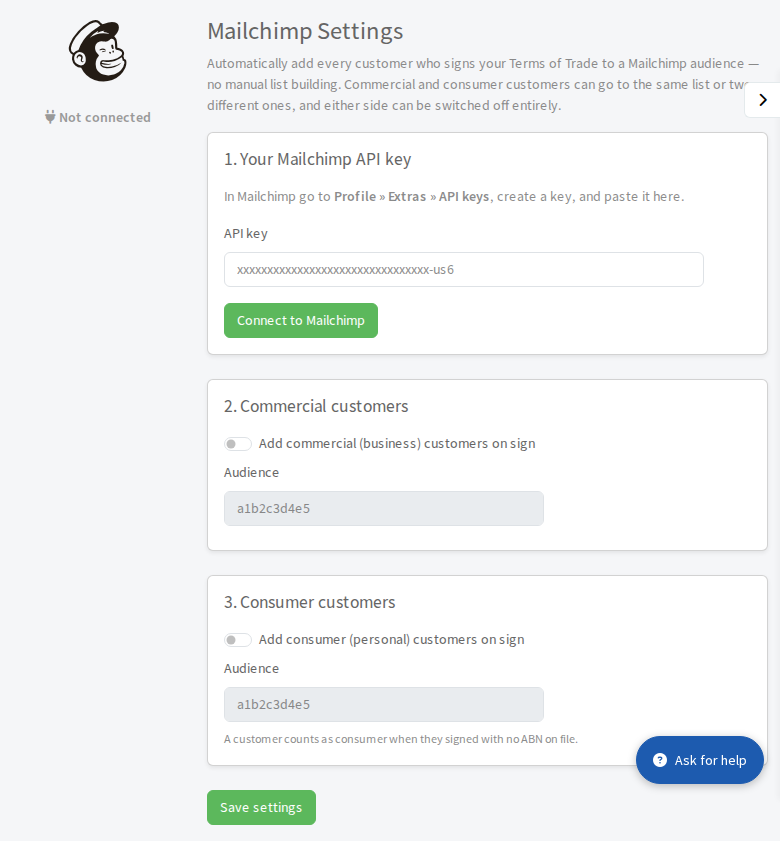
A customer counts as a consumer when they signed with no ABN on file.
If the audience list cannot be loaded from Mailchimp, the page asks you to paste the audience ID instead. Find it in Mailchimp under Audience, then Settings, then Audience name and defaults.