
Keep signed documents in your own storage
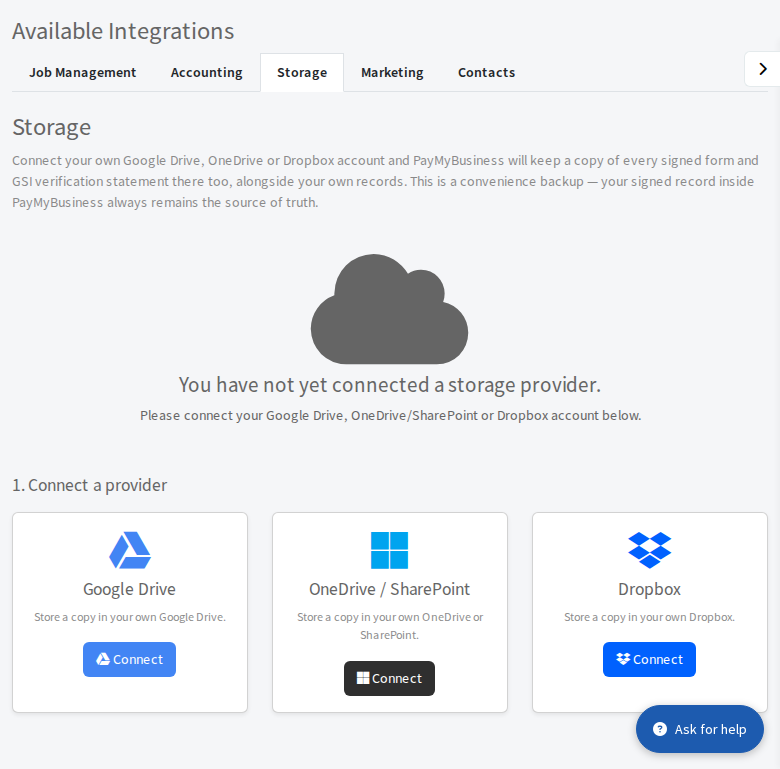
Connect Google Drive, OneDrive or Dropbox so a copy of every signed form is filed in your own account.
Connect your own storage and Pay My Business keeps a copy of every signed form, and every GSI verification statement, in it too, alongside your own records.
Steps
- Open Settings, then Connections, then Integrations, then the Storage tab.
- Under 1. Connect a provider choose Google Drive, OneDrive / SharePoint or Dropbox and select Connect.
- Sign in and approve access on the provider's screen.
- You return to the page. It says your account is connected and that signed forms and GSI verification statements are being kept in your storage too.
Where the files go
Files are filed under a folder for each customer, named by the customer's legal name, inside your root folder. For Dropbox the app folder is /Apps/PayMyBusiness storage. Each customer's folder can be renamed freely: Pay My Business tracks it by ID, not name. To change the root folder, type it in Root folder and select Update.
Pause or switch
- Untick Save signed forms (and GSI verification statements) to my storage to stop filing new copies.
- Only one provider can be connected at a time. To switch, select Disconnect, then connect another.