
Ask for help from inside Pay My Business
Send our support team a question, with a picture of your screen if you want, without leaving the app.
You can ask for help from any screen. Nothing is sent until you select Send.
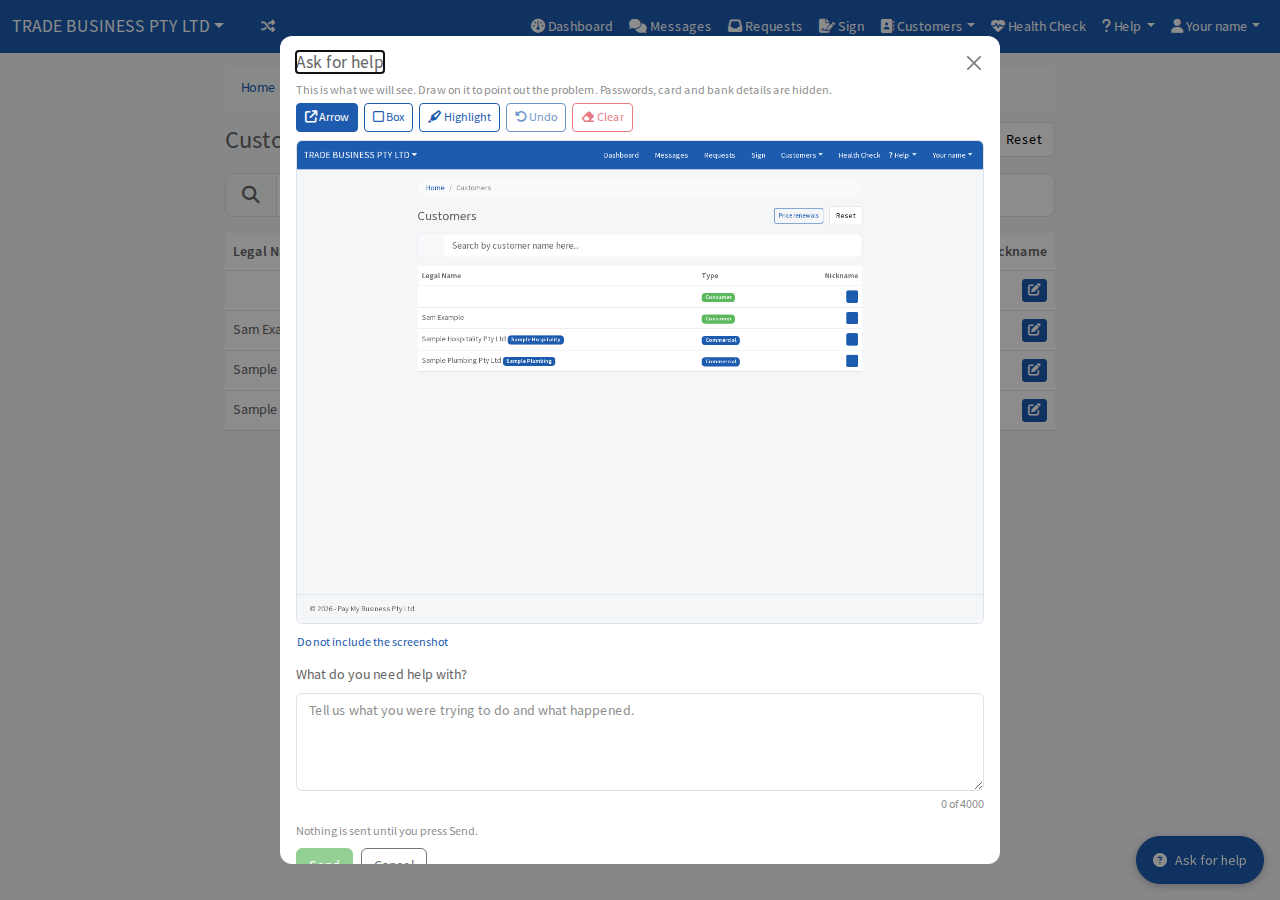
Steps
- Go to the screen where you have the problem.
- Select Ask for help in the bottom corner.
- If you want us to see your screen, choose Add a screenshot of this page. A picture of the page appears. Passwords, card and bank details are hidden from it.
- Draw on the picture to point at the problem. Choose Arrow, Box or Highlight. Use Undo or Clear if you make a mistake.
- In What do you need help with? say what you were trying to do and what happened. You can write up to 4000 characters.
- Select Send.
When it works, the window says Thanks, we have your request and gives a reference. Replies also come to the email address on your account.
Leave the picture out
Select Do not include the screenshot and the picture is not sent. Select Include it again to bring it back. If the picture fails, you can still send your note.
Ask without a screenshot
Open Help, then Support. The Ask a question box works the same way. To show us another page, use the Ask for help button on that page.
Other ways to reach us
The Support page can also show a phone number to call, a link to Book a session and a link to browse the help articles. Which of these appear depends on how support is set up for your account.