
Follow your support requests
See every request you have sent, read the replies and add to a request.
Each request you send to support has a reference and a status, and you can add to it at any time.
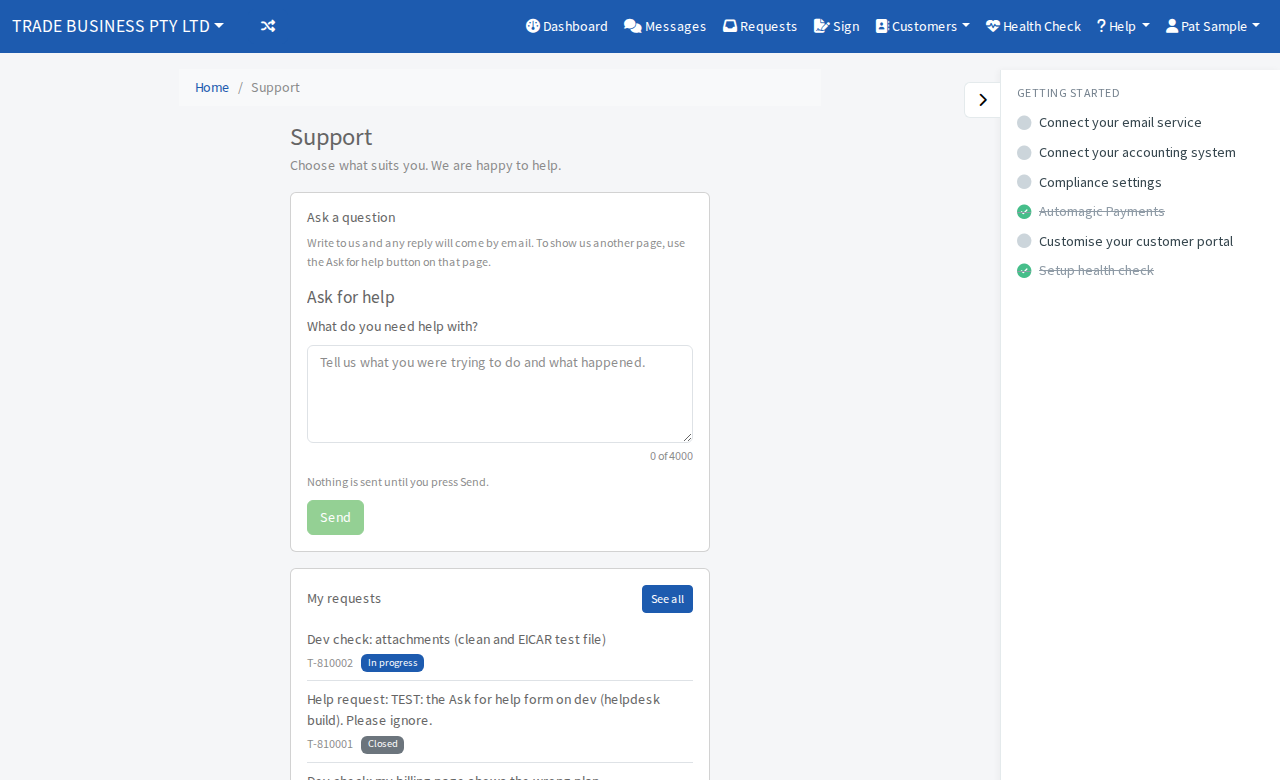
Steps
- Open Help, then Support. My requests lists your latest requests.
- Select See all to open the full list.
- Use the filters All, Open, Waiting for you, Solved or Closed to narrow the list. The owner of the business also sees Mine and My business buttons to switch between their own requests and everyone's.
- Select a request to read it.
- To add to it, type in Your reply, attach files if you need to and select the reply button. When it is sorted out, select Mark solved.
What the statuses mean
- Received: we have your request.
- In progress: we are working on it.
- Waiting for your reply: we need something from you.
- Solved: we think it is sorted.
- Closed: finished.
A badge on Help shows when a reply is waiting for you.
Leave a review
If Leave a review appears in the Help menu, open it to see the review sites where you can say how we did. It is always one tap and does not depend on your request.