
Set who signs and how they are checked
Choose which customers get your terms, which contacts you need from them and whether they sign with a selfie or an ID check.
Signing Rules control who is asked to sign and what you collect from them.
Steps
- Open Settings, then Documents & Signing, then Signing Rules.
- Under Terms of Trade, choose which customers complete the form: Consumers (Residential), Commercial (Business) or Both.
- Under Contact Types, choose for Signatory, Marketing, Sales, Logistics and Accounts whether the customer must give that contact (Required), may give it (Optional) or is not asked (Not Available). The signatory is always required.
- Set Sign with Selfie and ID Check if you want them (see below).
Each button saves as you select it.
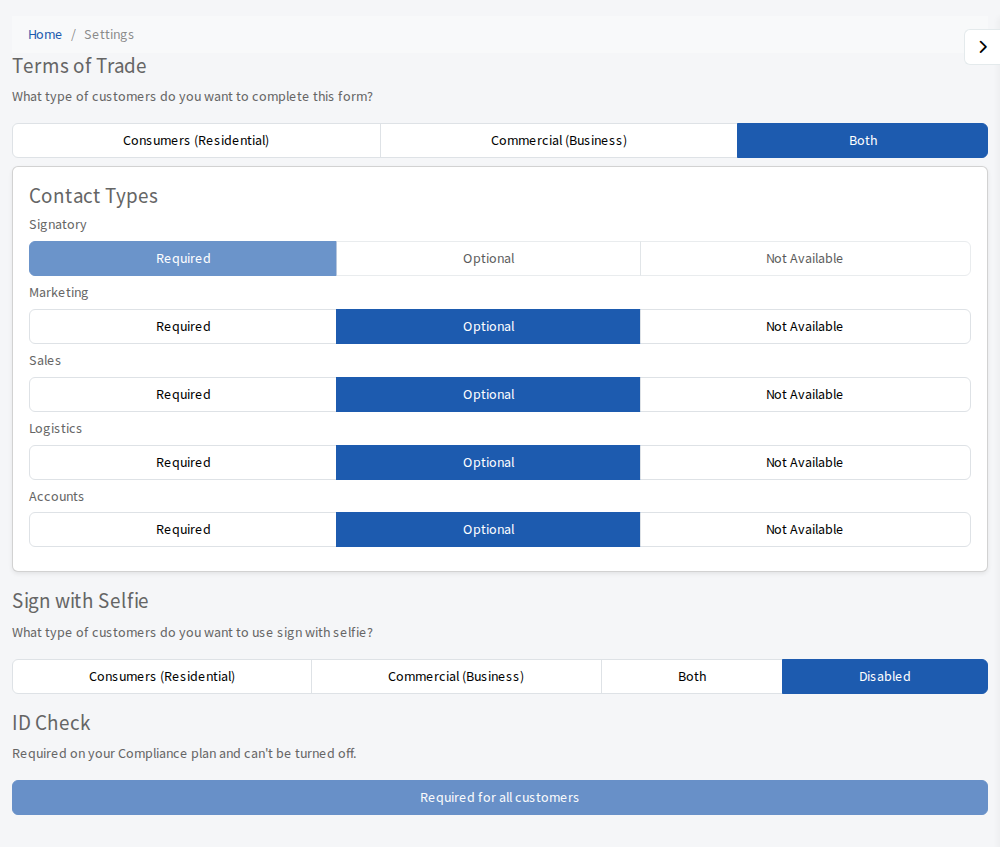
ID Check
Each ID check is charged at the Identity Verification Fee shown on your Billing page. On the Compliance plan an ID check is required for all customers and cannot be turned off. On other plans you choose Consumers (Residential), Commercial (Business), Both or Disabled. If you move to Compliance later it is switched on for you.