
Put your form on your website
Prove you own your website's address, then paste a small snippet so your Terms of Trade form appears on your own page.
Instead of only sharing a link, you can show one of your forms directly on a page of your own website.
Steps
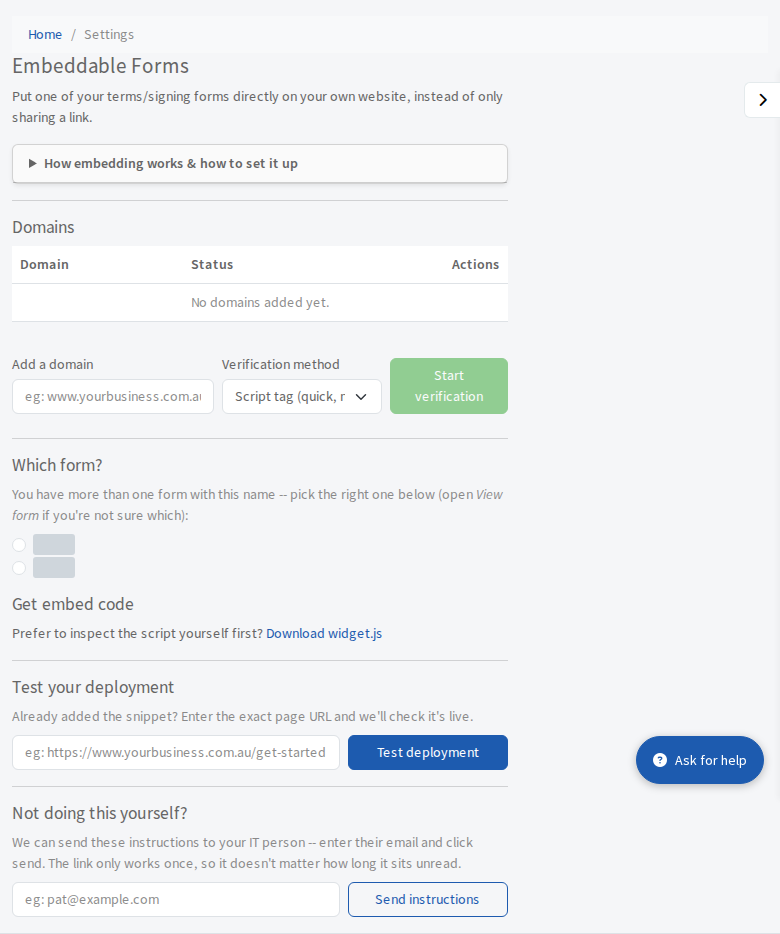
- Open Settings, then Connections, then Embeddable Forms.
- Under Add a domain type your website address, for example
www.yourbusiness.com.au. - Pick a Verification method:
- Script tag is quick and is for forms that do not take a payment.
- DNS record is needed for a form that collects a payment. Script verification alone can be faked.
- Select Start verification. The domain appears in the Domains table with the exact thing to add.
- For a script tag, add the shown snippet to a page on that domain.
- For a DNS record, add the shown TXT record (a host and a value) at your DNS provider.
- Select Check. The status becomes Script verified or DNS verified. DNS changes can take a little while, so try again shortly if it still says Unverified.
- Under Which form? choose the form. If you have only one it is picked for you. View form opens each so you can tell them apart.
- Select Get embed code next to your verified domain and paste the snippet onto your page.
- Under Test your deployment enter the exact address of that page and select Test deployment. A green message says the widget is live.
Domain verification protects your customers
Until a domain is verified, nobody can make your form appear inside a page on it, including you.
If a web developer does the work
Enter their email under Not doing this yourself? and select Send instructions. They get a one-time link that opens only this page, so they can add the domain and get the snippet. It cannot reach anything else in your account.
To read the script first, use Download widget.js.
To take a domain off, select Remove beside it.