
Connect ServiceM8
Connect ServiceM8 with an API key, set your deposit and decide when the balance is charged.
Connect ServiceM8 and Pay My Business becomes the payment rail for your jobs: it collects a signature, with a full audit record, when you send a quote and, if you have set up AutoMagic Payments, handles the payments for you.
Before you start
- ServiceM8 is part of the Trades and Compliance plans. On another plan the page shows an upgrade option instead of the settings.
- You need to be able to create an API key in ServiceM8.
- Set up AutoMagic Payments if you want deposits and balances charged automatically.
Steps
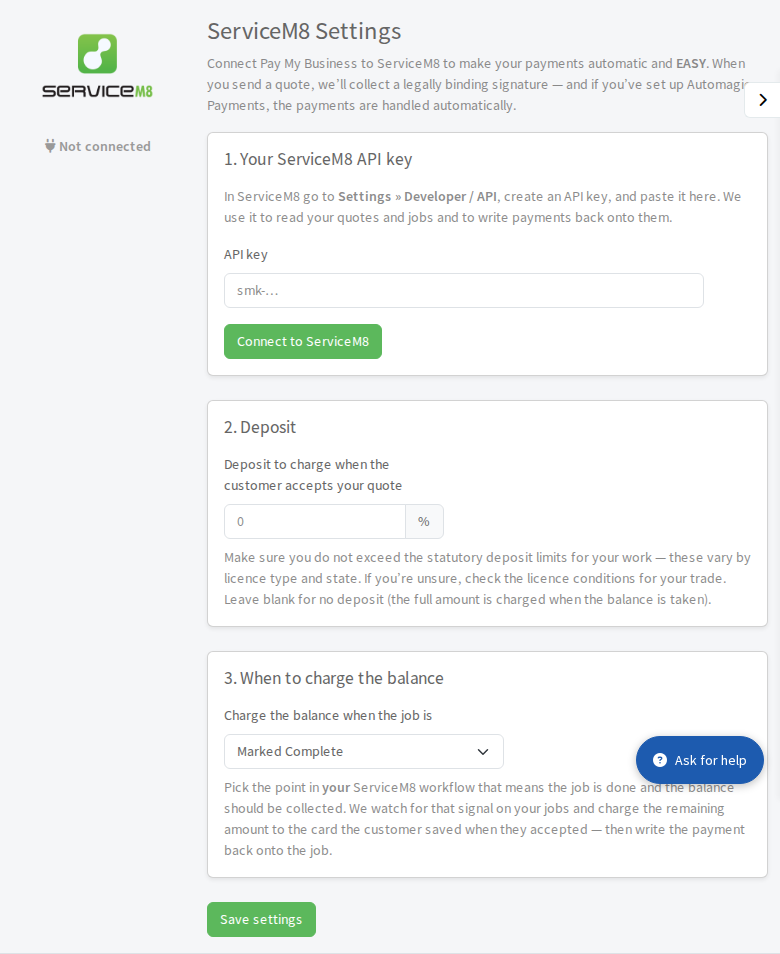
- In ServiceM8 go to Settings, then Developer / API, create an API key and copy it.
- In Pay My Business open Settings, then Connections, then Integrations, then select Go on ServiceM8.
- Paste the key into API key and select Connect to ServiceM8. The page shows Connected when it works. We use the key to read your quotes and jobs and to write payments back onto them.
- Under Deposit, type the percentage to charge when the customer accepts your quote. Leave it blank for no deposit: the full amount is then charged when the balance is taken.
- Under When to charge the balance, choose Marked Complete, Ready to Invoice or Invoice Sent: the point in your ServiceM8 workflow that means the job is done.
- Select Save settings.
Update your quote email templates
Once a key is saved a fourth section, Email templates, appears. Your ServiceM8 quote emails must send customers to your Pay My Business link instead of ServiceM8's own pay page. Either:
- select Update my templates automatically. Each template then shows Updated, or Needs update if it still has the old link; or
- copy the link shown and paste it into your ServiceM8 quote email templates yourself, in place of the "view/pay online" link (ServiceM8's
{document}field).