
Add a passkey
Sign in with your fingerprint, face or device PIN instead of waiting for an emailed link.
A passkey uses your device's own unlock: Touch ID, Windows Hello or your phone's fingerprint or PIN. There is nothing to type, and nothing a scammer can trick you into giving away. On a device with a passkey, Sign in with a passkey signs you straight in.
Steps
- Open Settings, then Business, then Security.
- Under Passkeys, select Add a passkey on this device.
- Your device asks you to unlock it. Use your fingerprint, face or PIN.
- If you have never set up a second step, Pay My Business now shows your recovery codes. Save them, then select I have saved them. See Set up an authenticator app for how to keep them.
When it works, a message says Passkey added. and the passkey is listed with the date you added it and when it was last used.
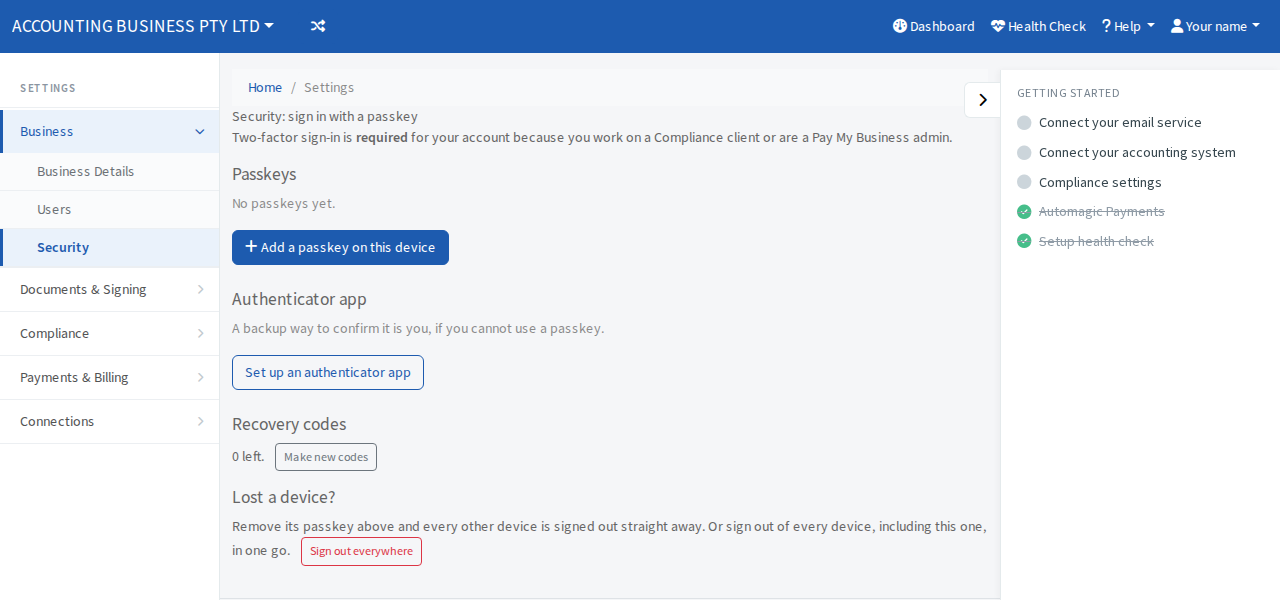
Add one on each device you use
A passkey belongs to the device (or the account your device syncs, such as your Apple or Google account). Repeat the steps on each computer or phone you sign in from.
Sign in with it
- Open the sign-in page.
- Select Sign in with a passkey and unlock your device.
Remove a passkey
Select Remove beside it and confirm. Every other device you are signed in on is signed out straight away, and you stay signed in on this one. Remove a passkey when you sell, lose or no longer use the device.